Manage access with role-based access control
To collaborate with others on your machines, you can grant users permissions for individual machines or entire locations. You can use the web UI or the Viam mobile app to grant or revoke organization owner or operator access to users or API keys.
For an overview of the resource hierarchy and how permissions work at each level, see Organizations, locations, and access. For details on what each role can do, see Permissions.
Grant access
Share resources with users
You must have the Owner role to be able to grant permissions.
On Viam, click on the organization dropdown in the top navigation bar.
Click on Settings.
Find the Members section of the organization settings page.
Click on Grant access.
Enter one or more email addresses in the Emails field. You can enter multiple addresses separated by commas or on separate lines. All invitations use the same role and resource.
Select an organization, a location, or a machine as the Entity to share.
Users with access to a location or organization can collaborate on the machines within it.
Select a role to assign to the user.
For more information on roles and the permissions they provide, see Manage access with Role-Based Access Control.
Click Send invitation (or Send invitations if you entered multiple email addresses).
Share a location with an organization
You must have the Owner role to be able to share locations.
- On Viam, click on the organization dropdown in the top navigation bar.
- Select the organization that contains the location you want to share.
- Navigate to the location you want to share.
- Find the Members & Sharing section of the location page.
- Click Add organization.
- Select an organization you have access to in the dropdown or specify an organization ID (a string like
1ab2c3d1-1234-123a-abcd-abcdef123456). Members of the org can find the organization ID on their organization settings page. - Click Grant access.
Note
Once you share a nested location (sub-location), its parent location cannot be changed.
Limit access
Limit access for users
You must have the Owner role to be able to limit permissions.
- On Viam, click on the organization dropdown in the top navigation bar.
- Click on Settings.
- Find the Members section of the organization settings page.
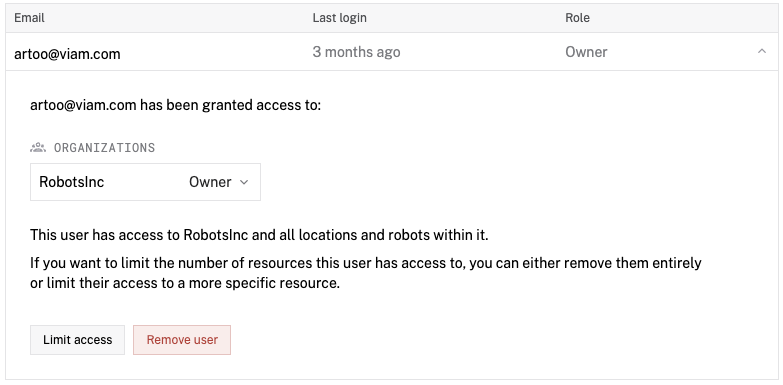
- Click on the user to open the access settings for the user.
- Either change the role of the user from owner to operator with the dropdown or click on Limit access and change the resource the user has access.
You can also remove the user by clicking on Remove user.

Restrict API calls on a machine
Roles decide who can reach a machine.
To limit which API methods a user or API key can call on specific resources of one machine, add a user_permissions list to the auth section of the machine’s JSON config.
viam-server enforces it on every gRPC request from a client.
Requires viam-server v1.8.0 or later.
You must have the Owner role on the machine to edit its config.
On the machine’s CONFIGURE tab, switch to JSON mode.
Add an
authobject at the top level of the config, or add to the existing one, with auser_permissionslist. For example, this config lets one API key read images fromcam1only, and lets everyone else callGetMachineStatus:{ "auth": { "user_permissions": [ { "user": { "type": "api-key-id", "id": "<api-key-id>" }, "permissions": [ { "resources": ["cam1"], "allowed_methods": [ "/viam.component.camera.v1.CameraService/GetImages" ] } ] }, { "user": { "type": "default" }, "permissions": [ { "resources": ["_machine"], "allowed_methods": [ "/viam.robot.v1.RobotService/GetMachineStatus" ] } ] } ] } }Click Save. The machine applies the change when it picks up the new config, without a restart.
Each entry has a user and a list of permissions:
| Field | Description |
|---|---|
user.type | api-key-id for an API key, app-user-id for a Viam user, or default for any authenticated caller that has no entry of its own. |
user.id | The API key ID (not the key), or the user ID. Find a member’s user ID in the user_id field returned by ListOrganizationMembers. Leave it out for default. |
permissions[].resources | Resource names the methods may be called on, such as ["cam1", "cam2"]. Use _machine for methods that don’t address a single resource, such as RobotService methods and ListStreams. |
permissions[].allowed_methods | Fully qualified gRPC method names, such as /viam.component.camera.v1.CameraService/GetImages. |
How viam-server applies the list:
- If
user_permissionsis empty or absent, every caller is unrestricted. - Once it has any entry, a caller may call only the methods its own entry grants.
A caller with no entry gets the
defaultentry’s permissions, or none if there is nodefaultentry. - Unauthenticated connections are fully restricted.
- If a user appears in more than one entry,
viam-serverlogs an error and fully restricts that user until you fix the config. An entry with an unknowntypeis ignored with a warning. - A denied call fails with a
PermissionDeniederror, andviam-serverlogs anunauthorized requestwarning naming the method, resource, and caller. When a change removes access,viam-servercloses the open streams, including video, of the callers who lost it. - Calls from modules running on the machine are not checked.
Caution
Viam app pages that talk to the machine, such as the CONTROL tab, connect as your user.
Give your own user ID, or the default entry, the methods those pages need, or they fail with permission errors.
Remove an organization from a shared location
You must have the Owner role to be able to share locations.
- On Viam, click on the organization dropdown in the top navigation bar.
- Select the organization that contains the location you want to share.
- Navigate to the location you want to unshare.
- Find the Members & Sharing section of the location page.
- Click the X to the right of the organization you want to remove.
- Click Remove.
Manage API key access
You can also grant access through API keys scoped to an organization, location, or machine. API keys are useful for programmatic access from SDK scripts, CI/CD pipelines, and automated workflows.
See Manage API keys for instructions on creating, rotating, and revoking API keys.
Collaborate safely
When you or your collaborators change the configuration of a machine or a group of machines, viam-server automatically synchronizes the configuration and updates the running resources within 15 seconds.
This means everyone who has access can change a fleet’s configuration, even while your machines are running.
You can see configuration changes made by yourself or by your collaborators by selecting History on the right side of your machine part’s card on the CONFIGURE tab. You can also revert to an earlier configuration from the History tab.
Machine configuration and machine code is intentionally kept separate, allowing you to keep track of versioning and debug issues separately.
Was this page helpful?
Glad to hear it! If you have any other feedback please let us know:
We're sorry about that. To help us improve, please tell us what we can do better:
Thank you!